
SparkVault for Slack
Share Ingots and send one-time secrets in Slack. You browse your Vaults without leaving the conversation.
Already signed up? An admin adds SparkVault to Slack in the console
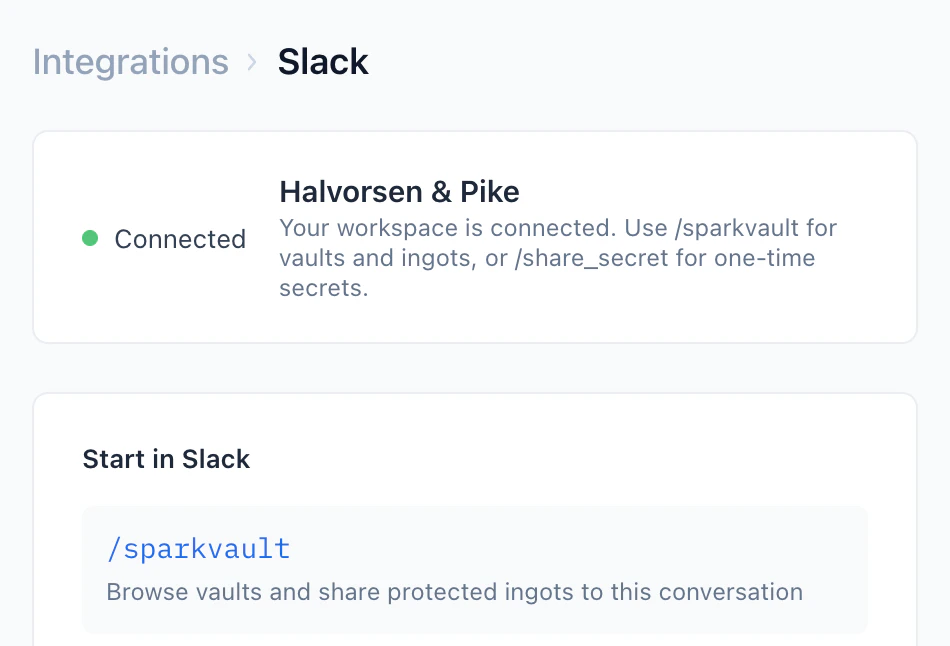
Your Vaults, inside Slack
Without leaving Slack, you browse your Vaults, upload and organize Ingots, and share them to a channel, thread or person. A share is a durable link or a one-time SparkLink, and you see who can open it and where it goes before it posts.
Commands and shortcuts
/sparkvault- Browse your Vaults and Ingots. Find the file you need by name.
/share_secret- Send a private note or password to a person or channel. The recipient confirms before opening it; the first read burns the Spark, and unread secrets expire.
/secret- The same composer, with the same recipient options.
/helpdesk- Choose an employee Desk and open a private ticket form from any conversation. An admin must enable Slack requests for that internal Desk first.
- App Home
- Browse without a command. A share starts in your direct messages with SparkVault, and you can pick a channel or a person instead.
- Browse SparkVault
- A shortcut that opens the same view of your Vaults.
- Share from SparkVault
- A shortcut on a message, for sharing an Ingot in its thread.
How you unseal a Vault
-
Connect your account
The first time, a SparkVault page asks you to sign in with Slack, then to the SparkVault account connected to the workspace. A link someone forwards to you does not connect.
-
Unseal a Vault
Unseal the Vaults you need with your own key or delegated access. Choose how long to keep the session open; Vault keys never reach Slack.
-
Work in Slack
Back in Slack you browse, upload, rename, move, delete and share with your normal SparkVault permissions. Membership in a Slack channel never grants SparkVault access on its own.
What Slack can see
Slack processes what you type into SparkVault’s commands and dialogs, a secret once its recipient opens it, and the Vault and file names SparkVault shows there. A file you upload through Slack reaches Slack first, and Slack keeps its copy under your workspace’s retention rules.
This integration is not end-to-end encryption that excludes Slack. Burning a Spark does not erase copies, screenshots or anything Slack has already processed. When something has to stay out of Slack, create and view it in SparkVault.
Vault keys never reach Slack. SparkVault never uploads an Ingot’s contents to Slack, and a download goes from a SparkVault page straight to your browser.
Adding it to your workspace
A SparkVault admin connects your workspace once. To browse Vaults, each person signs in to their own SparkVault account, keeping the access they already have. Invite the app into private channels where you want to share.
If your company also uses Secure Help Desk, an admin can enable Slack requests on internal Desks and choose a notification channel for each Desk. The employee’s Slack email must match an active member of your company. Notices show the Desk name, ticket number and a link, with no ticket content; opening a ticket still requires a role on that Desk.
SparkVault does not request your Slack message history or keep Slack user tokens. The permissions guide explains the connection in detail.
SparkVault for Slack is built and supported by SparkVault. Contact support
Share your first Ingot from Slack
Sparks are free on every plan, including one-time secrets sent in Slack. Sharing Ingots uses your plan’s storage and transfer capacity. A SparkVault admin adds the app once, and your team shares from the conversation with the SparkVault permissions they already have.
Already signed up? An admin adds SparkVault to Slack in the console